Piano Visualizer MIDI
Practice any piano piece with this piano visualizer midi tool — slow it down, loop the hard bars, play along at your own pace.
Export is unavailable until online usage authorization is connected.
Export is unavailable until online usage authorization is connected.
Drop a MIDI file anywhere
or choose Try demo to explore the visualizer.
Choose a MIDI file or try the demo. Playback uses a basic browser synth; SoundFonts are not included.
Visualizer settings
Tracks
Load a MIDI file to view and control its tracks.
MIDI data is processed in this browser page and is not uploaded. Preferences are saved locally in this browser.
Free to use · No sign-up
Try a practice piece
No piece handy? Tap a practice piece below — it loads straight into the visualizer, no upload needed. The practice pieces are real MIDI files, so tempo, loops, and hand colors behave exactly as with your own uploads.
In der Nacht, Op. 12 No. 5
Robert Schumann · Piano
MIDI · 4:26 · 1 track
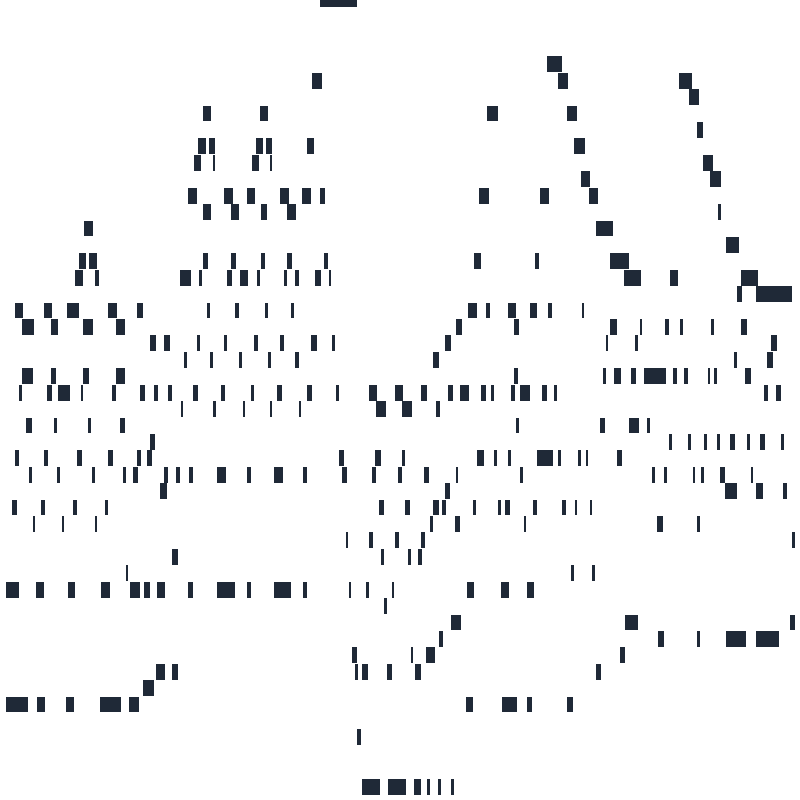
Intermezzo, Op. 118 No. 2
Johannes Brahms · Piano
MIDI · 4:39 · 3 tracks
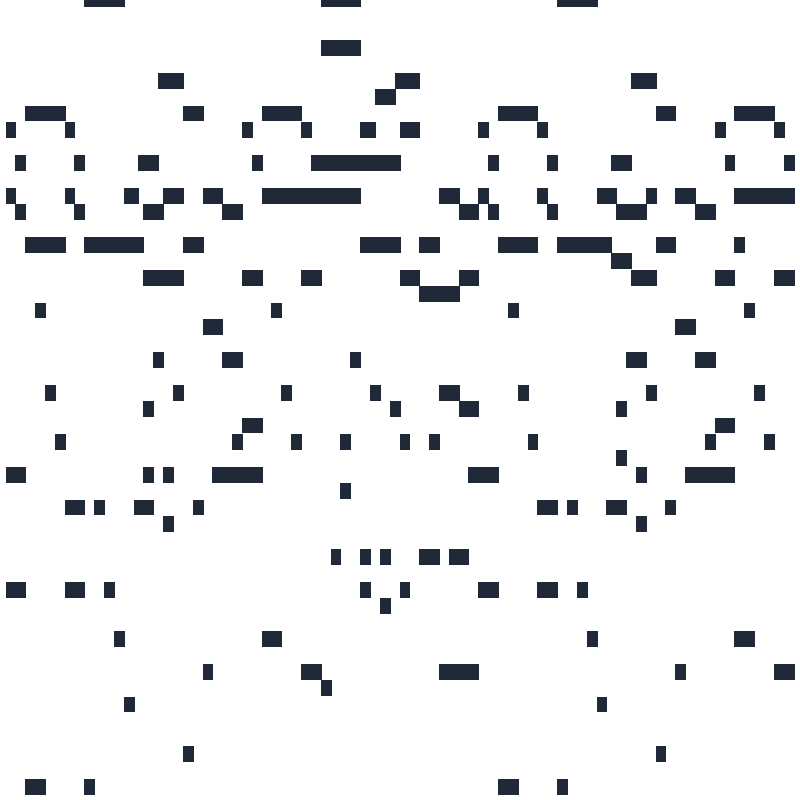
Valse-Impromptu, S. 213
Franz Liszt · Piano
MIDI · 5:34 · 1 track
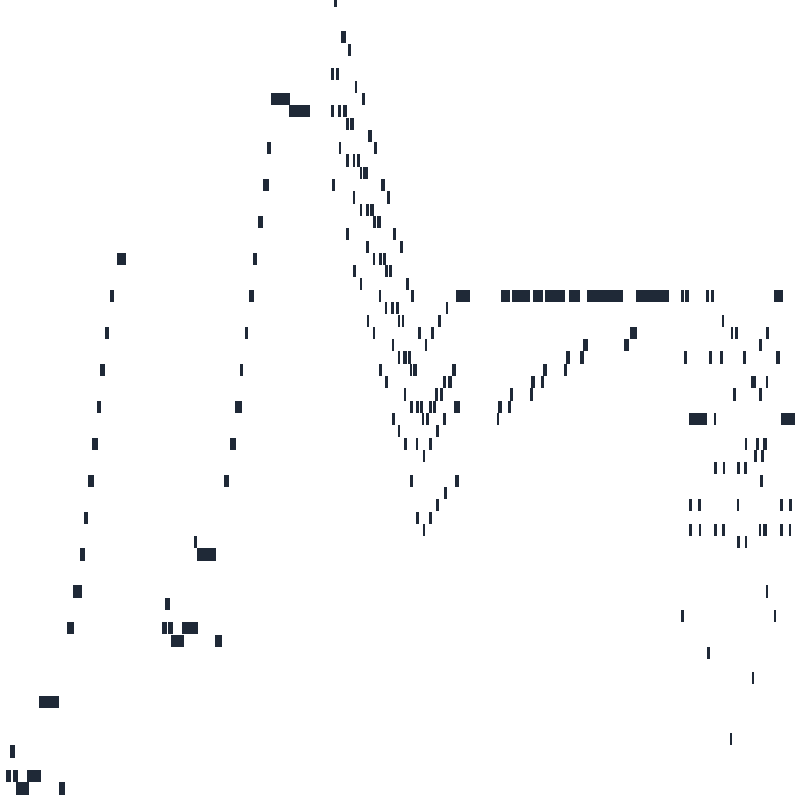
Ogive No. 1
Erik Satie · Piano
MIDI · 1:29 · 4 tracks

How Do I Practice Piano with a Visualizer?
Three steps, no teacher required — from file to play-along in under a minute.
Step 1 — Import your piece
Drag a .mid or .midi file onto the player, or press "Try a demo". The file is parsed locally in your browser — nothing is uploaded. The four practice pieces are real MIDI files, so what you practice is exactly what's inside.
Step 2 — Slow it down and play along
Drag the tempo slider down and play along on your own piano. Each falling note shows its name, so you can follow without reading sheet music. Pitch never changes with tempo, so half speed still sounds like the piece — just slower.
Step 3 — Loop the hard bars
Select the bars that fall apart and set an A–B loop. Repeat at half speed until your hands know them. Two to four bars at a time is the sweet spot; widen the loop as the passage cleans up.
Why This Piano Visualizer Is Built for Practice
A video tool shows you notes. This piano visualizer midi tool is built for the hours between lessons — when repetition is the whole job.
Follow-play tempo control
Slow any piece to a comfortable practice tempo — pitch never changes, so slow practice still sounds musical. Start at half speed on the hard bars, then nudge the slider up as your hands learn them.
A–B section looping
Isolate the two bars that fall apart and loop them at half speed until they're clean. Set loop points around any passage — most students loop two to four bars at a time.
Hands-separate practice view
Color the left and right hand differently and drill one hand at a time — like a teacher covering one hand while you play the other. Switch the colors off any time to play hands together.
Note names and sustain-pedal markers
Every falling note shows its exact name — C4, D#5 — and pedal events appear as markers below the keyboard. Follow the names and you can learn a piece without reading a score.
Opens any piano MIDI you own
There is no built-in library of copyrighted exam repertoire. The piano visualizer midi tool opens any MIDI file you legally own — public-domain études, practice pieces from your teacher, or exports from notation software.
Private by design, safe for kids
No sign-up means no accounts and no personal data, practice files never leave the browser, and there is nothing to download. Parents can hand it to a child with nothing to configure and nothing to sign.
Your Practice Piece, at Your Tempo
Drop in a .mid, slow it down, loop the hard bars — free, no sign-up.
Every practice piece in this piano visualizer midi tool is a real MIDI file — tap one and follow the falling notes. Slow it down, loop the hard bars, and build speed at your own pace.
Piano Visualizer MIDI FAQ
Questions students actually ask before practicing — answered straight, no marketing fluff.
Is this piano visualizer midi free?
Free to use — no sign-up needed. Guests get 1 full practice session; signed-in users get unlimited practice sessions.
Is my MIDI file uploaded anywhere?
No — 100% local. Your MIDI file is read by your browser and never uploaded, stored, or shared. Close the tab and nothing remains. No account, no upload queue — the piece never leaves your machine.
Can I slow the music down and play along?
Yes — that is the whole point of the tool. Drag the tempo slider down and play along on your own piano while the notes fall. Start at half speed and work back up to full tempo. Pair slowdown with an A–B loop and the hard bars get all the repetition they need.
Can I loop just one bar or a tricky section?
Yes. Select any bars and set an A–B loop, then repeat the passage at a comfortable tempo until your hands know it. Most students loop two to four bars at a time.
Are exam or graded pieces included?
There is no built-in library of copyrighted exam repertoire. The tool opens any MIDI file you legally own — public-domain études, practice pieces from your teacher, or exports from notation software. Your teacher's PDFs won't open here directly — convert them to MIDI first, then practice.
Is it safe for kids to use?
Yes, by design: no sign-up means no accounts and no personal data, practice files never leave the browser, and there is nothing to download.
What's the difference between this page and the MIDI Visualizer?
This page is a piano practice tool: tempo control, section loops, a hand-split view, and note names for play-along learning. The MIDI Visualizer is the general piano-roll video tool — recording, snapshots, and themes for making videos. Same local engine, different job.
Does this replace a piano teacher?
No — it complements one. A teacher corrects fingering, posture, and musicality that no visualization can see. Use this tool for the hours between lessons, when repetition is the whole job.
Do I need an account to try the practice pieces?
No — the four practice pieces load with no account at all. The free quota only counts sessions with your own uploaded files: guests get 1, signed-in users get unlimited practice sessions. The practice pieces are real MIDI files, so tempo and loops behave exactly as with your own uploads.
How does the hands-separate view tell my hands apart?
The piano visualizer midi tool splits the keyboard range into left and right hand parts and colors them differently, so you can drill one hand at a time.
Will slowing down change the pitch?
No — tempo and pitch are independent. Slow a piece to half speed and every note still sounds at its true pitch, so slow practice stays musical. This is why slow practice works: your ears learn the true intervals at any speed.
What do Type 0 and Type 1 mean on the practice cards?
Type 0 packs every note into a single track; Type 1 keeps parts on separate tracks. Both play identically — the difference only matters when you start isolating hands or parts.
Which browsers are supported?
Any modern browser with Web Audio: Chrome, Edge, Firefox, and Safari on desktop, tablet, and phone. Because this piano visualizer midi tool is pure browser tech with zero server, it even works on locked-down machines like Chromebooks — a common classroom setup, since no install means no IT ticket.
Can I use it without reading sheet music?
Yes — every falling note shows its name, so you can follow the notes without reading a score. It does not teach notation, but it gets you playing.
What is a piano roll?
A piano roll is a scrolling grid where each note appears as a bar — pitch on the vertical axis, time on the horizontal. This piano visualizer midi tool turns your piece into that falling-note view in real time.
Does it work on phones and tablets?
Yes — any modern mobile browser with Web Audio. Drop a .mid file from your device, slow it down, and play along. For serious practice a bigger screen helps, but tempo and loop controls work the same everywhere.
Can I use it offline?
Practice runs 100% locally in your browser — once the page is loaded, no network is needed to play along or loop.
Can I practice hands together after drilling separately?
Yes — the hand-split view is a practice aid, not a restriction. Drill one hand at a time, then follow the full piece with both hands whenever you're ready. Many players alternate: separate hands to learn, together to polish.
Will it open MIDI exported from my digital piano?
Yes — any standard .mid or .midi file works, including exports from digital pianos and notation software. Type 0 and Type 1 both play.
What happens to my file when I close the tab?
Nothing is stored — the file never left your browser, so closing the tab clears the session. There is nothing to save on our side.
Continue Your Workflow
Nailed the hard bars? Keep going — your MIDI opens directly in these tools.
MIDI Visualizer
Turn the practiced piece into a piano-roll video.
MIDI Player Online
Hear any MIDI piece before you start practicing.
MIDI Editor
Fix wrong notes before your practice session.
PDF to MIDI
Turn a scanned score into MIDI, then follow the notes.
MP3 to MIDI
Convert a recording of your playing into MIDI.
AI MIDI Generator
Generate practice melodies with AI, loop them at half speed.